BrowserOS + Hermes Agent Integration Guide
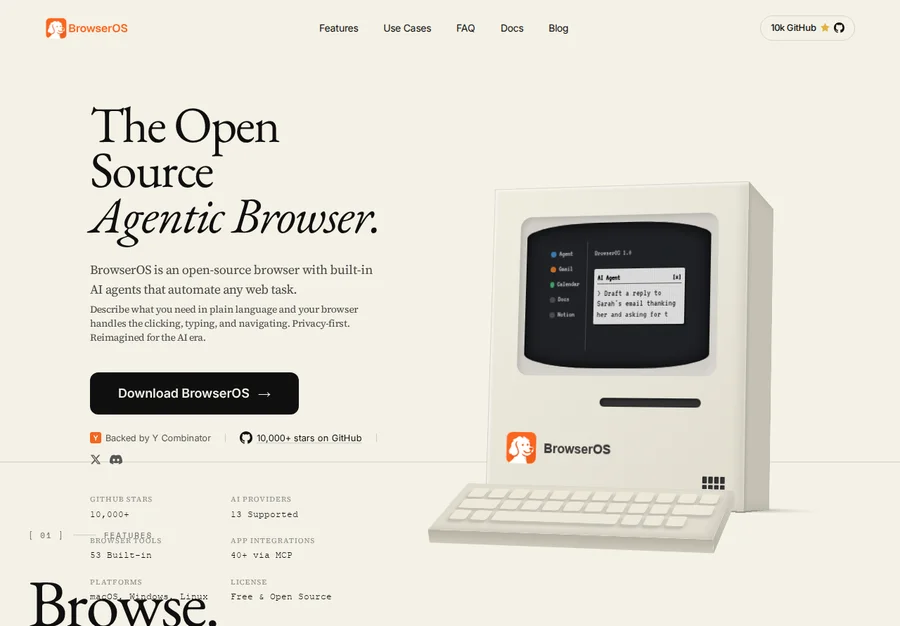
BrowserOS is a Chromium-based browser with a built-in Model Context Protocol (MCP) server. When paired with Hermes Agent, it lets Hermes use browser tools through a local HTTP connection. The available tools and connection details can change between BrowserOS releases, so treat the browser's MCP settings as the source of truth.
Browser access is real access
A connected agent can see pages available to the browser profile and may be able to click, type, upload, download, or submit forms. Use a separate browser profile for experiments, avoid sensitive accounts, and review each action before allowing a write or external side effect.
Introduction
What is BrowserOS?
BrowserOS provides browser automation capabilities such as:
| Feature | Description |
|---|---|
| MCP Server | Built-in server whose URL is shown in the BrowserOS MCP settings |
| Tab Management | Group, organize, move tabs with full metadata |
| Hidden Tabs | Run background automation without disturbing user's view |
| Bookmarks API | Full CRUD on browser bookmarks |
| History API | Search and manage browsing history |
| Tab Groups | Organize tabs into colored groups |
| Built-in Skills | Optional workflows, depending on the installed release |
| Screenshots | Full-page and element-level screenshots |
| PDF Export | Save any page as PDF |
| Connect Apps | Optional connections to external services |
Why Use BrowserOS with Hermes?
- Natural language control — Tell Hermes what to do in the browser, and it executes autonomously
- Persistent browser state — Browser tabs, history, bookmarks, and sessions can persist in the browser profile
- MCP connection — Hermes can discover the tools exposed by the configured server
- Local boundary — The connection is local, but pages and connected services may still contain sensitive data
When to Use BrowserOS vs Hermes Browser Tools
| Use Case | Tool |
|---|---|
| Complex multi-step workflows | BrowserOS MCP tools — full control, persistent tabs |
| Quick URL checks | Hermes built-in browser — simpler, ephemeral |
| Research, extraction, monitoring | BrowserOS — stateful, resumable |
| Simple navigation + screenshot | Either works |
Integration Setup
Prerequisites
- BrowserOS installed and running
- Hermes Agent installed — MCP support is included in the standard Hermes install
- A dedicated browser profile for agent experiments
Quick Start
-
Start BrowserOS and open its MCP settings page. In current releases this is available at
chrome://browseros/mcp. -
Copy the Server URL shown there. Do not assume a port from an older article or installation; the browser may change it between releases.
-
Add the copied URL to Hermes:
# ~/.hermes/config.yaml
mcp_servers:
  browseros:
    url: "<Server URL copied from chrome://browseros/mcp>"
    timeout: 120
    connect_timeout: 30
Replace the example URL with the exact URL shown by BrowserOS.
- Start or reload Hermes:
hermes
Common Setup Issues
| Issue | Solution |
|---|---|
| MCP connection refused | Start BrowserOS and copy its current MCP URL |
| Tools not appearing | Run hermes mcp list, then reload Hermes |
| Timeout errors | Increase timeout in config: timeout: 180 |
Verification
Check the connection from Hermes:
hermes mcp list
Hermes registers discovered tools using the pattern
mcp_<server_name>_<tool_name> (for example,
mcp_browseros_navigate_page). The exact tool list depends on the BrowserOS
release and your enabled connections.
Tool Categories
BrowserOS exposes a release-dependent set of tools. The categories below are representative examples, not a promise that every installation contains every entry.
1. Page/Tab Management
| Tool | Description |
|---|---|
get_active_page |
Get the currently active (focused) page |
list_pages |
List all open tabs |
navigate_page |
Navigate to URL, or back/forward/reload |
new_page |
Open a new tab (background by default) |
new_hidden_page |
Open a hidden tab for background work |
show_page |
Restore a hidden tab to visibility |
move_page |
Move a tab to a different window/position |
close_page |
Close a tab |
2. Content Extraction
| Tool | Description |
|---|---|
take_snapshot |
Get interactive element IDs for automation |
take_enhanced_snapshot |
Detailed accessibility tree with context |
get_page_content |
Extract clean markdown content |
get_page_links |
Extract all links as [text](url) |
get_dom |
Get raw HTML DOM structure |
search_dom |
Search DOM with text/CSS/XPath |
get_console_logs |
Get browser console output |
3. Interaction
| Tool | Description |
|---|---|
click |
Click an element by snapshot ID |
click_at |
Click at coordinates |
hover |
Hover over an element |
hover_at |
Hover at coordinates |
type_at |
Type at coordinates |
drag_at |
Drag from one coordinate to another |
focus |
Focus an element |
clear |
Clear input text |
fill |
Type into an input |
check |
Check a checkbox/radio |
uncheck |
Uncheck a checkbox |
upload_file |
Upload file to input |
press_key |
Press a key/key combo |
drag |
Drag from element to element/coords |
scroll |
Scroll page or element |
handle_dialog |
Accept/dismiss JS dialog |
select_option |
Select dropdown option |
4. Media & Export
| Tool | Description |
|---|---|
take_screenshot |
Screenshot of current page |
save_pdf |
Save page as PDF |
save_screenshot |
Screenshot to file |
download_file |
Click to download file |
5. Window Management
| Tool | Description |
|---|---|
list_windows |
List all windows |
create_window |
Create new window |
create_hidden_window |
Create hidden window |
close_window |
Close window |
activate_window |
Focus window |
6. Bookmarks
| Tool | Description |
|---|---|
get_bookmarks |
List all bookmarks |
create_bookmark |
Create bookmark or folder |
remove_bookmark |
Remove bookmark/folder |
update_bookmark |
Update title/URL |
move_bookmark |
Move to folder |
search_bookmarks |
Search by title/URL |
7. History
| Tool | Description |
|---|---|
search_history |
Search history |
get_recent_history |
Recent items |
delete_history_url |
Delete specific URL |
delete_history_range |
Delete by date range |
8. Tab Groups
| Tool | Description |
|---|---|
list_tab_groups |
List all groups |
group_tabs |
Group tabs |
update_tab_group |
Update title/color/collapsed |
ungroup_tabs |
Remove from group |
close_tab_group |
Close group and tabs |
9. Script Execution
| Tool | Description |
|---|---|
evaluate_script |
Execute JavaScript in page context |
10. Connect Apps
| Tool | Description |
|---|---|
discover_server_categories_or_actions |
Discover available services |
get_category_actions |
Get actions for a category |
get_action_details |
Get action parameters |
execute_action |
Execute a Connect App action |
handle_auth_failure |
Handle auth errors |
Practical Examples
Example 1: Quick Page Summary
Request:
"Summarize the current state of quantum computing from Wikipedia"
Tools used:
navigate_page→ go to Wikipedia quantum computing pageget_page_content→ extract clean markdown- Summarize the content
Example 2: Multi-Source Research
Request:
"Research the best noise-canceling headphones from 5 sources and create a comparison table"
Workflow:
- Create workspace:
create_hidden_window - Open 5 hidden tabs:
new_hidden_page× 5 - Navigate each:
navigate_page - Extract:
get_page_contentorevaluate_script - Save each: write to
raw/ - Close:
close_page - Merge: Read all raw files, create
merged.csv - Report: Generate
report.html
Example 3: Product Availability Tracking
Request:
"Track the availability of 'NVIDIA RTX 5090' on Amazon, Newegg, and Best Buy. Alert me when one is in stock."
Workflow:
- Create 3 hidden tabs for each retailer
- Navigate to product pages
- Use
evaluate_scriptto extract availability text - Save availability history to a local file
- Compare against threshold
- Alert user if condition met
Example 4: Form Submission
Request:
"Fill out the signup form at example.com/signup with test credentials"
Tools used:
navigate_page→ go to formtake_snapshot→ get element IDsfill→ fill name/email fieldsselect_option→ select dropdownclick→ submit buttonhandle_dialog→ accept confirmation
Example 5: Bookmarks Management
Request:
"Create a bookmark folder for 'AI Research' and save these 5 URLs as bookmarks inside it"
Workflow:
create_bookmark→ create foldercreate_bookmark× 5 → add each URL with the folder ID
Example 6: Screenshot Walkthrough
Request:
"Create a step-by-step screenshot walkthrough of logging into Gmail"
Workflow:
new_page→ navigate to Gmailtake_snapshot→ get login elementssave_screenshot→ capture each step- Continue until logged in
- Compile into markdown with image paths
Built-in Skills
Some BrowserOS releases include local workflows under
~/.browseros/skills/builtin/. Treat this directory as installation-specific
and inspect each workflow before enabling it:
| Skill | Description |
|---|---|
deep-research |
Multi-source research with HTML report + PDF |
extract-data |
Extract structured data (tables, products, pricing) |
monitor-page |
Track changes on a web page over time |
compare-prices |
Compare prices across multiple retailers |
find-alternatives |
Find alternative products/services |
fill-form |
Automate form filling and submission |
save-page |
Save pages for offline reading |
read-later |
Queue pages to read later |
manage-bookmarks |
CRUD on bookmarks |
organize-tabs |
Organize tabs into groups |
screenshot-walkthrough |
Document workflows with screenshots |
summarize-page |
Extract and summarize page content |
Advanced Workflows
A. Deep Research (Multi-Day)
BrowserOS has a built-in deep-research skill:
"Research the current state of AI coding assistants. Compare at least 5 sources including GitHub, papers with code, and industry blogs. Create both an HTML report and a PDF."
Hermes will:
- Plan 5 search queries
- Open parallel hidden tabs (10 max)
- Navigate, extract, save each source
- Merge findings into
findings.md - Generate
report.html - Save as PDF with
save_pdf
B. Product Comparison
Build a product comparison workflow:
- Define products — Create a CSV with product names and URLs
- Hidden window — Use
create_hidden_windowfor automation - Parallel extraction — Open up to 10 tabs
- Value extraction — Use
evaluate_scriptwith a selector or regex to extract the relevant value - Merge — Combine into comparison CSV
- Report — Generate HTML with comparison columns and links
C. Web Monitoring
Set up monitoring with cron:
- Use BrowserOS to navigate to target pages
- Extract current state with
get_page_content - Compare against previous saved state
- If changes detected, alert via Hermes
- Save new state
Example cron job:
# Check Hacker News top post every hour
0 * * * * hermes exec "check HN and save top story"
D. Connect Apps Actions
BrowserOS can connect to external services through its connected-apps layer:
discover_server_categories_or_actions— List available servicesget_category_actions— Get actions for a service (e.g., GitHub)get_action_details— Get required parametersexecute_action— Execute with parametershandle_auth_failure— If auth fails, get auth URL
Best Practices
1. Always Take a Snapshot First
Before any automation, always:
# Get interactive elements
snapshot = take_snapshot()
# Then use the element IDs for clicks, fills, etc.
2. Save Data Incrementally
Never accumulate data in memory:
# GOOD: Save each page immediately
for page in pages:
    data = extract(page)
    save(f"raw/{page.slug}.json")
merge_from_files("raw/")
3. Limit Concurrent Tabs
Max 10 open tabs at a time:
# Process in batches of 10
for batch in chunks(urls, 10):
    tabs = [new_hidden_page(url) for url in batch]
    extract_all(tabs)
    close_all(tabs)
4. Handle Dynamic Content
For pages with infinite scroll or lazy loading:
# Scroll to load more content
await scroll(direction="down")

# Or use JavaScript
evaluate_script(script="window.scrollTo(0, document.body.scrollHeight)")
5. Use JavaScript for Complex Extraction
For nested structures (product cards, etc.):
// extract.js
const items = document.querySelectorAll(".product-card");
return JSON.stringify(
  Array.from(items).map((item) => ({
    name: item.querySelector(".title").innerText,
    value: item.querySelector(".value").innerText,
    url: item.querySelector("a").href,
  })),
);
6. Clean Up After Automation
Always close hidden windows and tabs:
await close_window(window_id=hidden_window_id)
7. Handle Dialogs Proactively
Before triggering potential dialogs:
# First, set the dialog handler
await handle_dialog(accept=True)
# Then click the element that might trigger a dialog
8. Record Source URLs
Every extracted data point should include its source:
product,value,source_url
NVIDIA RTX 5090,in stock,https://newegg.com/product/...
Troubleshooting
MCP Connection Refused
Problem: Failed to connect to MCP server 'browseros'
Fix:
- Verify BrowserOS is running and open
chrome://browseros/mcp. - Copy the current Server URL from that page.
- Restart or reload Hermes after changing
~/.hermes/config.yaml.
Tools Not Appearing
Problem: Tools listed but not available
Fix:
- Restart Hermes:
hermes(new session) - Check config:
cat ~/.hermes/config.yaml | grep -A5 mcp_servers
Page Load Timeout
Problem: navigate_page times out
Fix:
- Increase timeout in config:
mcp_servers:
  browseros:
    url: "<Server URL copied from chrome://browseros/mcp>"
    timeout: 180 # increased from 120
Screenshot Not Supported on Hidden Tab
Problem: take_screenshot fails on hidden tab
Fix:
- Use
show_pagefirst to make the tab visible:
await show_page(page_id=page_id)
Element Not Found
Problem: click or fill fails — element not in snapshot
Fix:
- Wait for page to settle:
evaluate_scriptwith a small delay - Re-take snapshot:
take_snapshot - Use
search_domto find element by text/CSS - Use
scrollto bring element into view
Summary
BrowserOS transforms web automation from brittle scripts into reliable AI-driven workflows. Combined with Hermes Agent's memory, skills, and MCP integration, you get:
- Natural language control over any web task
- Persistent state across sessions
- Browser interaction tools for navigation, extraction, and page control
- Connect Apps for extending workflows to external services
- Built-in skills for research, extraction, monitoring
Pair BrowserOS with Hermes when you need Hermes to work through a real browser profile. Start with read-only tasks, then add write actions only after you have verified the scope and permissions of the connected tools.
Additional Resources
- MCP Protocol: https://modelcontextprotocol.io
- Hermes MCP: See
hermes-agentskill for MCP configuration - BrowserOS MCP documentation: https://docs.browseros.com/features/use-with-claude-code
- BrowserOS Skills: Built-in workflows at
~/.browseros/skills/builtin/
Verification
- Last reviewed: 2026-09-11
- Primary sources: BrowserOS MCP client documentation, Hermes MCP documentation
- Scope: Setup flow, MCP configuration shape, safety guidance, and the installed BrowserOS tool inventory were checked against the current primary documentation. The current documentation's port is illustrative; copy the installed browser's Server URL. Tool names and optional BrowserOS features remain release-dependent.